
IZI Game Accounts
यह कंटेंट अभी तक आपकी भाषा में उपलब्ध नहीं है।
Steam Launcher lets a club use a shared pool of club Steam accounts. An administrator adds Steam accounts in CRM, the system pulls in the game library, and a player at a PC picks a game in IZI Game Launcher and receives a free club account to launch it.
Important: Steam Launcher does not install games and does not launch a player’s personal Steam account. It works exclusively with club Steam accounts that have been added in CRM.
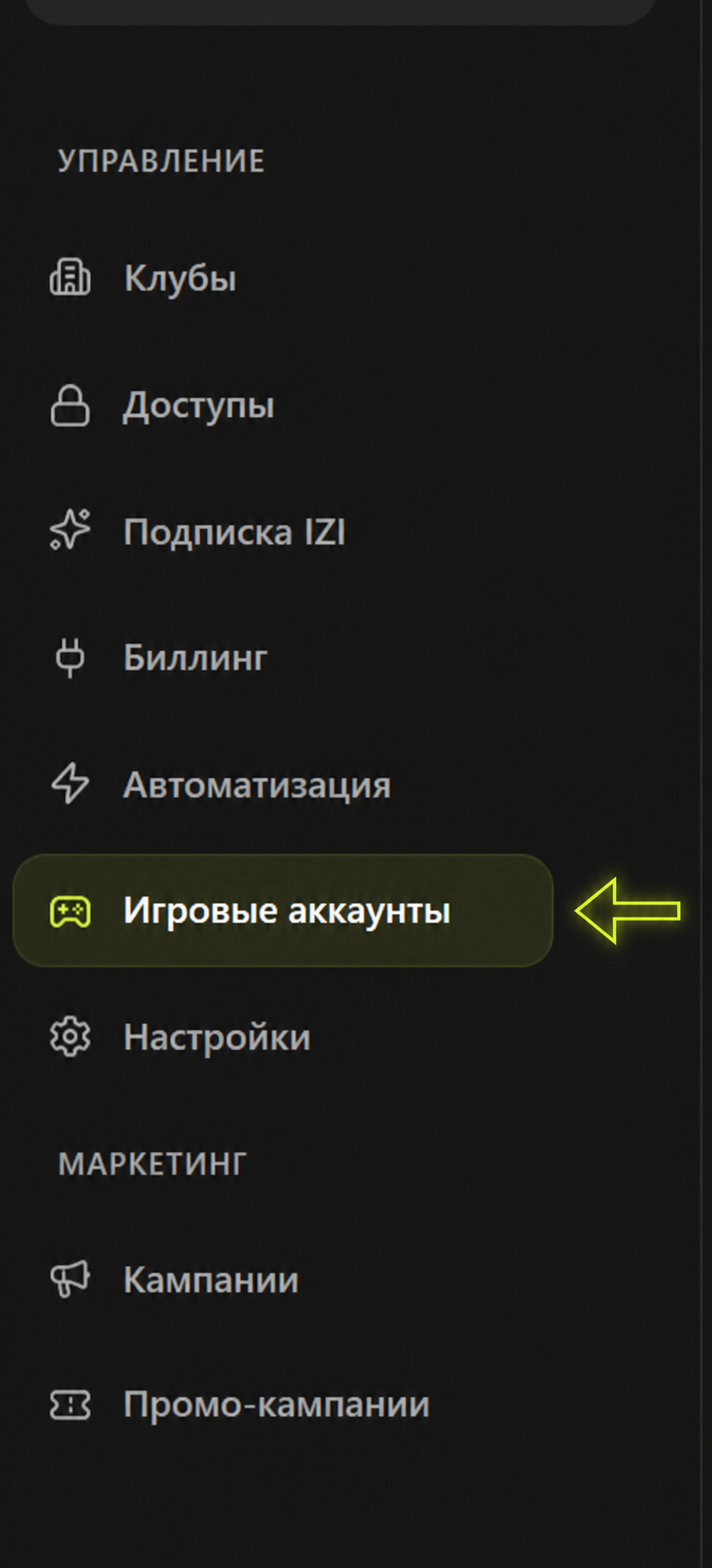
1. Open the Game Accounts section
Section titled “1. Open the Game Accounts section”In CRM, go to Organization and open Game Accounts.
2. Download the launcher or add an account
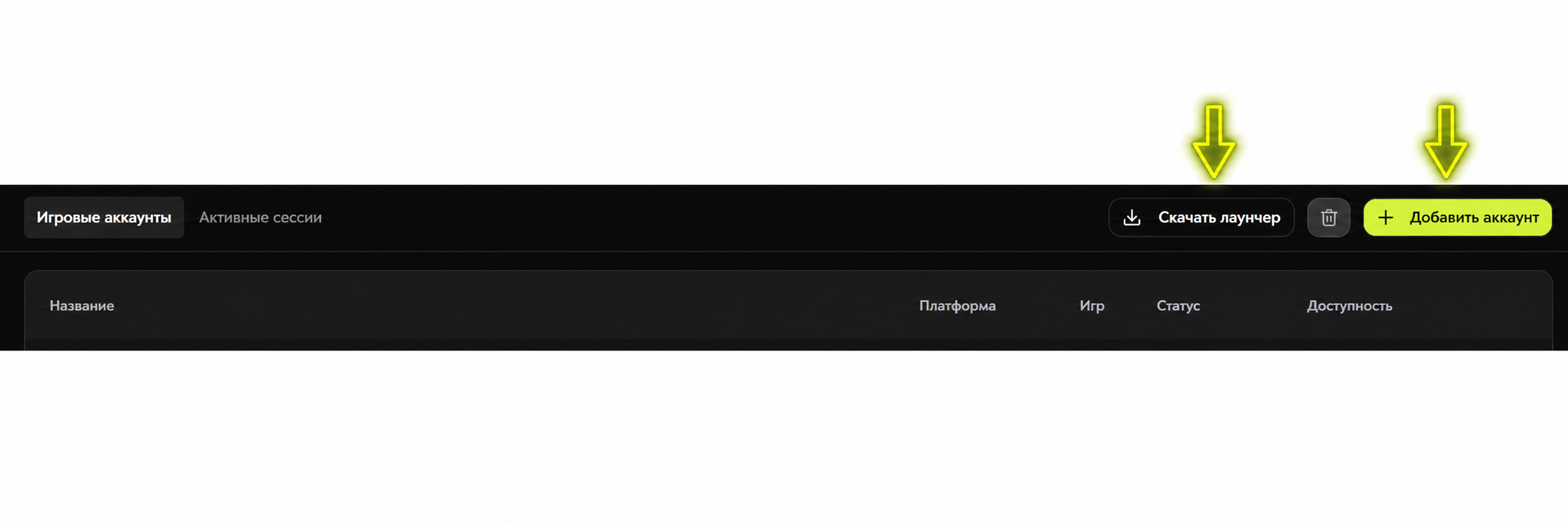
Section titled “2. Download the launcher or add an account”The Game Accounts section offers two main actions:
- Download launcher — download Steam Launcher to install on a club PC.
- Add account — add a club Steam account to the shared pool.
3. Fill in account details
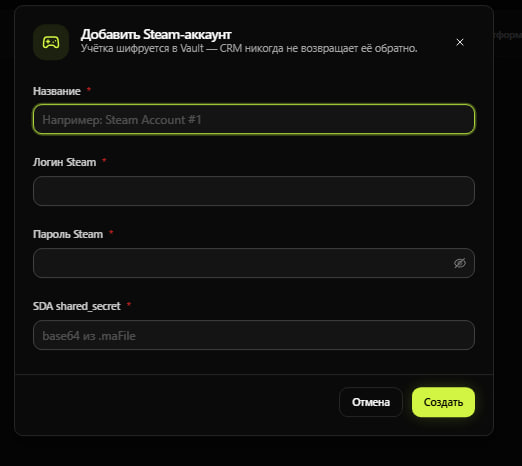
Section titled “3. Fill in account details”Click Add account and fill in the club Steam account details:
- Name — the internal account label in CRM. For example:
Steam Account #1. - Steam login — the login for the club Steam account.
- Steam password — the password for the club Steam account.
- SDA shared_secret — the secret from the
.maFilecreated by Steam Desktop Authenticator.
The SDA shared_secret field is filled in after you set up Steam Desktop Authenticator. How to obtain it is described below.
4. Download SDA
Section titled “4. Download SDA”Steam Desktop Authenticator, or SDA, is a third-party tool used to prepare the .maFile and retrieve the shared_secret.
Download the ready-to-run ZIP archive from the releases page:
https://github.com/Jessecar96/SteamDesktopAuthenticator/releases
Important: download the archive from the Releases section, not from the Code → Download ZIP button. The Code button downloads the source code, not the executable program.
5. Add the account in SDA
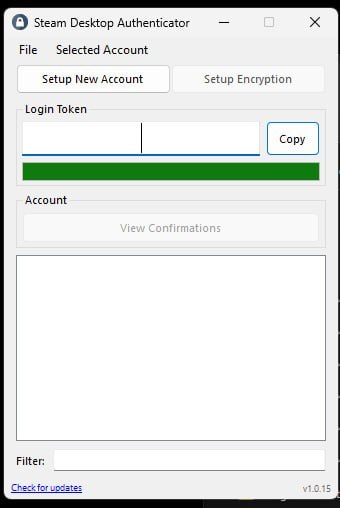
Section titled “5. Add the account in SDA”After installing and launching SDA, the main program window will open. To add a Steam account, click Setup New Account.
Do not share logins, passwords, tokens, or account credentials in any chat.
6. Confirm the sign-in
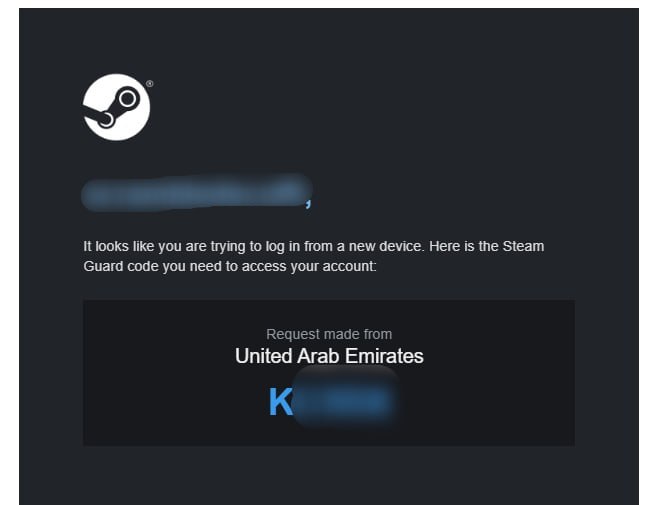
Section titled “6. Confirm the sign-in”After entering the Steam login and password, Steam may send a verification code to the account’s email address. Enter this code in Steam Desktop Authenticator to confirm the sign-in and continue linking the account.
The code is one-time use. Do not forward it in chats or leave it visible in screenshots intended for instructions.
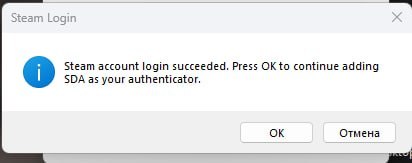
After the code is entered successfully, the Steam account login succeeded window will appear. Click OK to continue adding SDA as the authenticator for the account.
7. Save the recovery code
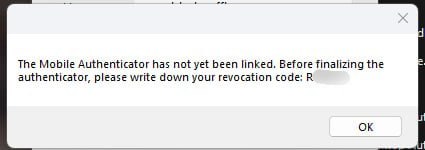
Section titled “7. Save the recovery code”SDA will display a revocation code — the authenticator recovery code. You must write it down and store it in a safe place before completing the linking process.
This code is needed if you ever need to remove the authenticator from the account or restore access after losing the .maFile.
Do not send the revocation code to any chat or store it alongside the Steam account login and password.
8. Enter the confirmation code
Section titled “8. Enter the confirmation code”After saving the revocation code, SDA will ask you to enter a confirmation code. If a phone number is linked to the Steam account, the code will arrive by SMS. If there is no phone number, the code may come by email.
Enter the code you received and click Accept.
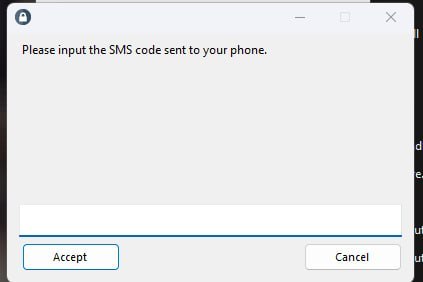
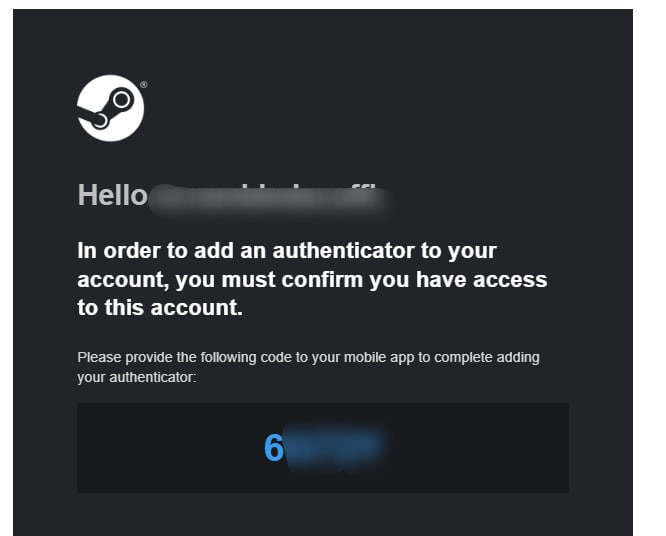
Steam may additionally send a confirmation code to complete adding the authenticator. Enter this code in SDA as well.
After the code is accepted successfully, SDA will finish setup and create the account file .maFile.
9. Confirm the recovery code
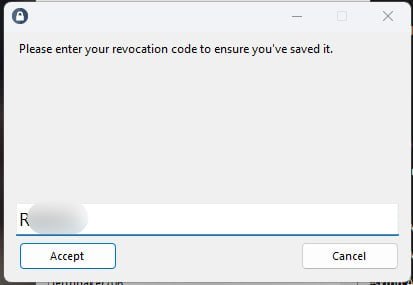
Section titled “9. Confirm the recovery code”After saving the revocation code, SDA will ask you to enter it again to confirm that the code has actually been recorded.
Enter the revocation code and click Accept.
Important: this is not an SMS code or a Steam Guard code. It is specifically the authenticator recovery code.
10. Retrieve the shared_secret
Section titled “10. Retrieve the shared_secret”After setup is complete, SDA creates the account file .maFile. This file contains the shared_secret that CRM needs.
Open the .maFile, find the shared_secret field, and copy its value into the SDA shared_secret field when adding the Steam account in CRM.
Important:
- Do not send
shared_secretto any chat. - Do not store
.maFilein a publicly accessible location. - Keep the revocation code stored separately and securely.
- If the
.maFileorshared_secretfalls into the wrong hands, the Steam account must be considered compromised.
11. Create the account in CRM
Section titled “11. Create the account in CRM”Return to CRM, fill in the Name, Steam login, Steam password, and SDA shared_secret fields, then click Create.
After the account is added, CRM will pull in the list of games available on that Steam account. Those games will become accessible to players through IZI Game Launcher.
IZI LLC (ООО «ИЗИ»), TIN 7842227686, OGRN 1257800012249, office 1, premises 3-N, lit. A, 15-17 Perekupnoy lane, Saint Petersburg, 191024, Russia, admin@izi.is · Cookie settings