

Connect CCBoot to IZI
यह कंटेंट अभी तक आपकी भाषा में उपलब्ध नहीं है।
Connect CCBoot to IZI
Section titled “Connect CCBoot to IZI”CCBoot Cloud stores a shared Windows image on the club server and boots gaming PCs over the network. IZI connects through the iCafeCloud API to power on PCs and update the IZI client in the shared image from Control Center. Follow these steps to grant API access and complete the connection in IZI CRM.
Prerequisites
Section titled “Prerequisites”| Requirement | Details |
|---|---|
| Working CCBoot Cloud | The club’s iCafeCloud panel has a Boot page, PCs and an assigned Windows image. |
| iCafeCloud Admin account | Obtain access from the license owner. This account can create an API token. |
| IZI outgoing IP | 81.26.188.3, the fixed address to enter in API Access IP. |
| IZI Boot configuration access | A staff account with BOOT_CONFIG_MANAGE permission. |
| IZI client in the shared image | Contact IZI support for initial image preparation in diskless mode. After booting, the PC appears in CRM with its Windows computer name. |
Step 1. Allow iCafeCloud API access
Section titled “Step 1. Allow iCafeCloud API access”- Sign in to the iCafeCloud cloud panel as Admin.
- Open «Settings» → «API settings».
- Enter
81.26.188.3in API Access IP. If other services already have addresses there, append81.26.188.3with a comma and retain the existing entries. - Copy License ID. This is the Cafe ID used in IZI CRM.
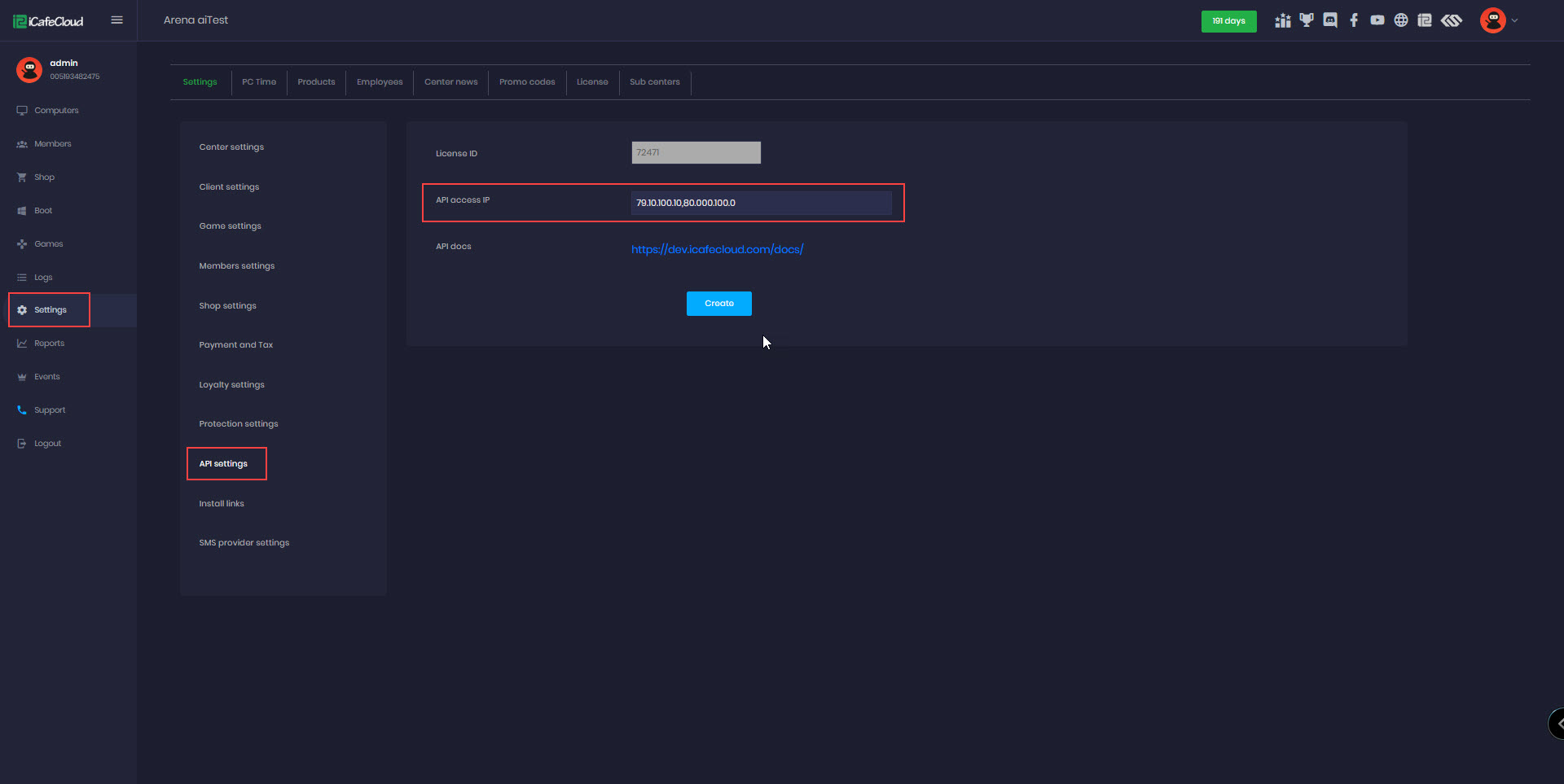
Screenshot from iCafeCloud API settings. The image shows example values; use your own License ID and the IZI address 81.26.188.3.
IZI sends requests through a dedicated proxy with the reserved static address 81.26.188.3. The address stays assigned when the proxy server is replaced.
Step 2. Create an API token
Section titled “Step 2. Create an API token”- Click Create on the same page.
- Confirm with Yes.
- Click Copy and store the token in a password manager. The issuance window displays it once.
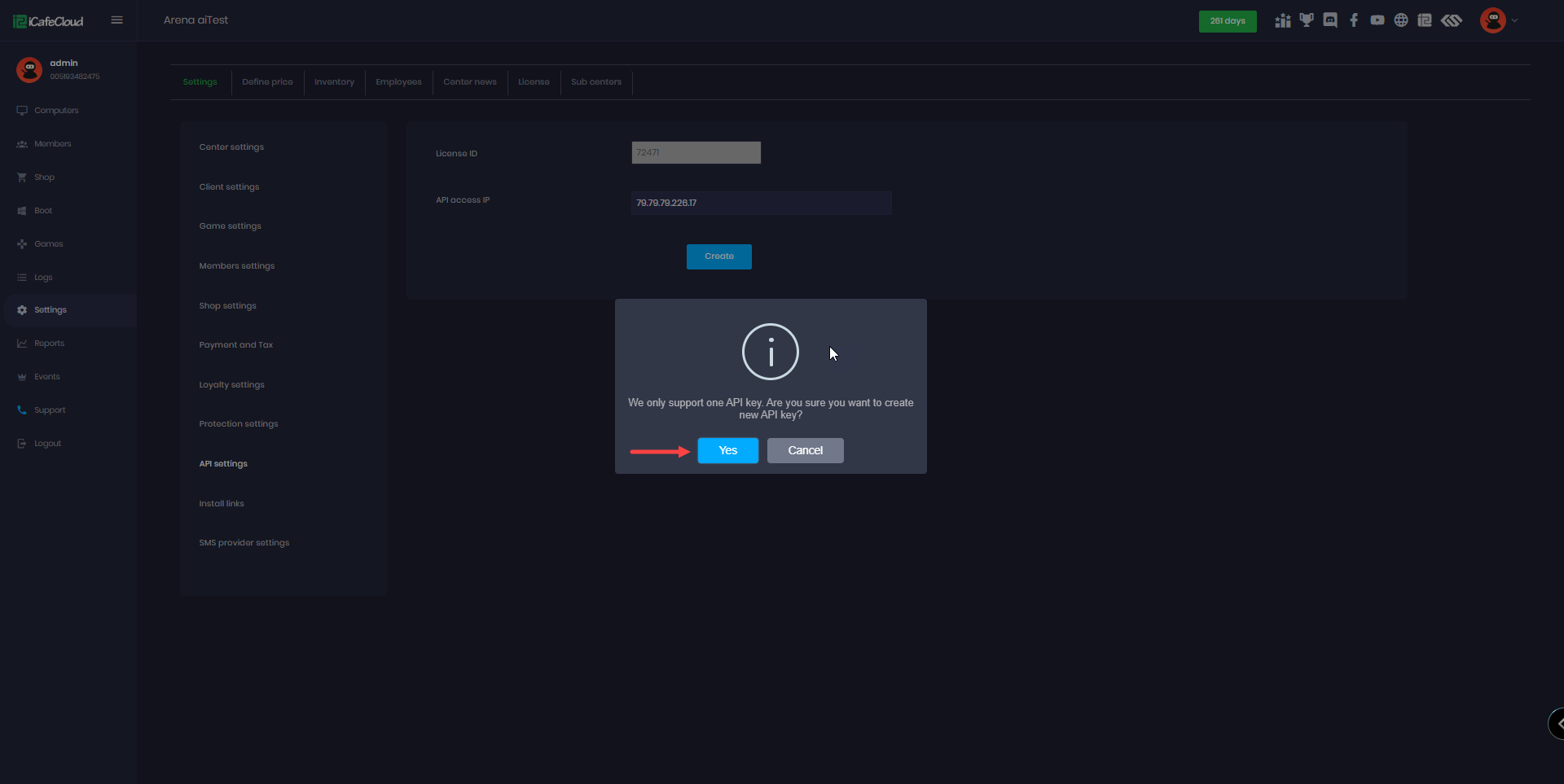
Source: iCafeCloud API settings.
iCafeCloud supports one API key per license. Creating a new key replaces the previous one, so coordinate the update across services using the license API. A key is valid for one year. When moving the license to another iCafeCloud server group, issue a fresh key and update the IZI connection.
Step 3. Prepare diskless zones
Section titled “Step 3. Prepare diskless zones”In IZI CRM, open Settings → Equipment → Zones and enable Diskless zone for zones containing CCBoot PCs. The mode is editable while the zone is empty and becomes fixed after devices are added. See zone setup.
Assign the CCBoot PCs to these zones. The Boot page has separate system selections for zones with local disks and diskless zones. CCBoot serves the club’s diskless zones.
Step 4. Save the IZI connection
Section titled “Step 4. Save the IZI connection”Open Settings → Equipment → Game storage, and in the Diskless zones block click Set up → on the CCBoot card.
| CRM field | Value |
|---|---|
| Cafe ID | Numeric License ID from iCafeCloud. |
| API URL | https://api.icafecloud.com, already filled in. |
| API token | The value copied after Create. Paste the token itself; IZI constructs the authorization header. |
Click Save, then Test connection. IZI requests the club’s boot PC list from iCafeCloud. A successful result confirms API access with the saved parameters.
The Connected label means a configuration has been saved. Test connection reports the result of contacting iCafeCloud.
The token is hidden after saving. To replace it, click Change beside the token field, enter the current key and save. Editing Cafe ID or API URL keeps the stored token in use.
Step 5. Match PC names
Section titled “Step 5. Match PC names”Open Boot → Computers in iCafeCloud and the same device’s details in IZI. Match the full Windows computer name exactly to the CCBoot PC name, including case and leading zeros.
| Value | Example |
|---|---|
| CCBoot PC name | PC01 |
| Windows computer name reported by the IZI client | PC01 |
| Seat number in CRM | 01 |
IZI finds the CCBoot PC by its full computer name. The seat number identifies the place in the hall. Also confirm the PC’s assigned boot image: updating the client writes to that image.
Connection complete: the configuration is saved, the connection check succeeded, PCs belong to diskless zones and their computer names match CCBoot.
Update the IZI client in the shared image
Section titled “Update the IZI client in the shared image”Choose an idle PC with a working IZI client. It becomes the shared image editor and goes through two reboots. Update each image through one PC at a time.
- In Control Center, open the selected PC’s command menu → Update boot image.
- Click Start.
- Follow the stages: enable Super Client → update the client in the image → save to the image → return to normal mode.
- Wait for completion. Then reboot the other idle PCs using that image to load the saved client version.
You can close the operation window: progress stays on the PC tile and the update continues on the server.
Actions requested by CRM
Section titled “Actions requested by CRM”When CRM asks you to enable Super Client manually, open iCafeCloud → Boot → Computers, right-click the same PC → Enable super client, select its image disk and click OK. IZI continues after the mode is enabled.
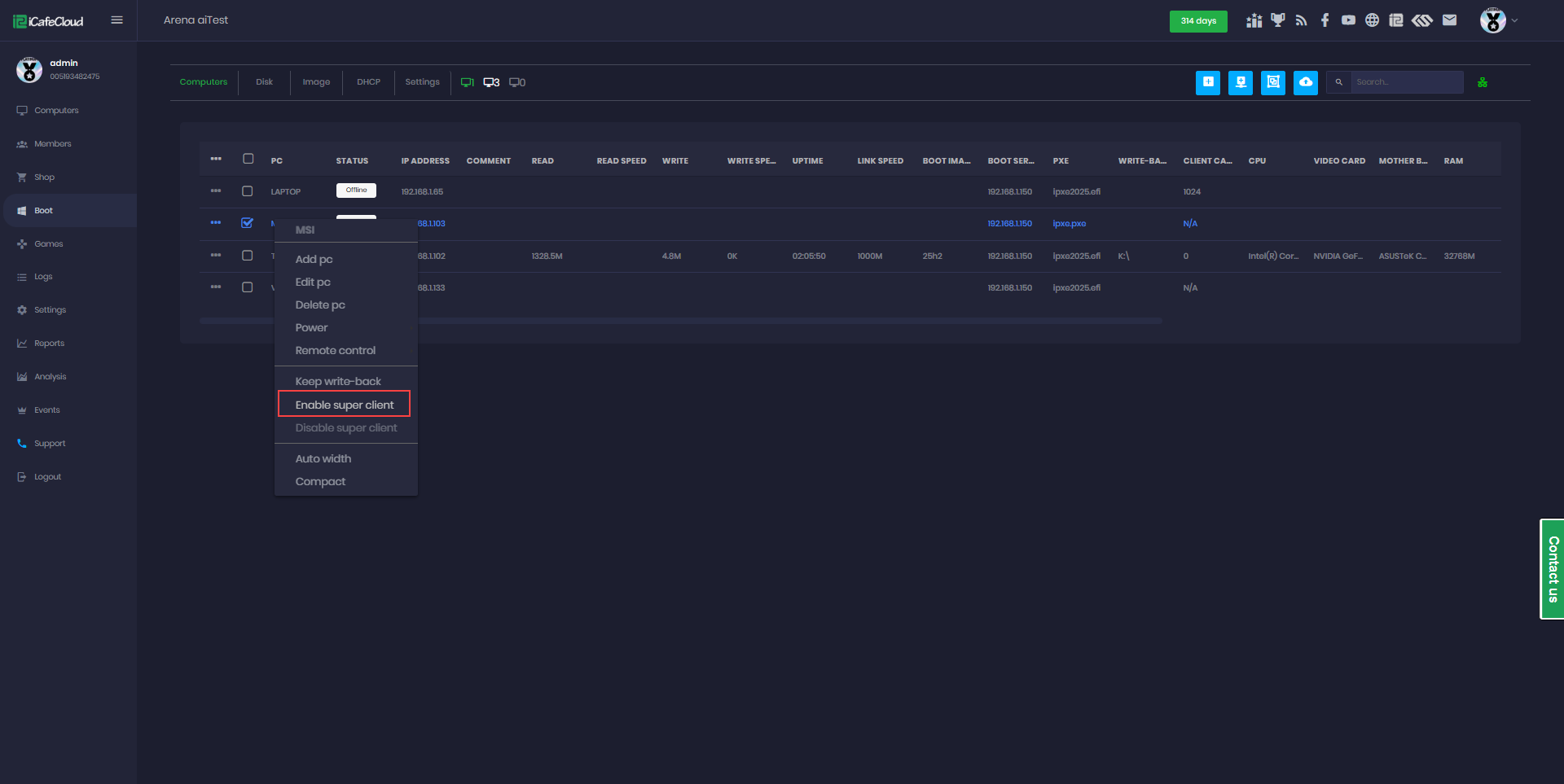
Source: CCBoot Cloud Super client.
When CRM requests a manual save, shut down the editor PC. Once it shows Offline, choose Disable super client, select Update the Image, add a description and click OK. Wait for saving to finish.
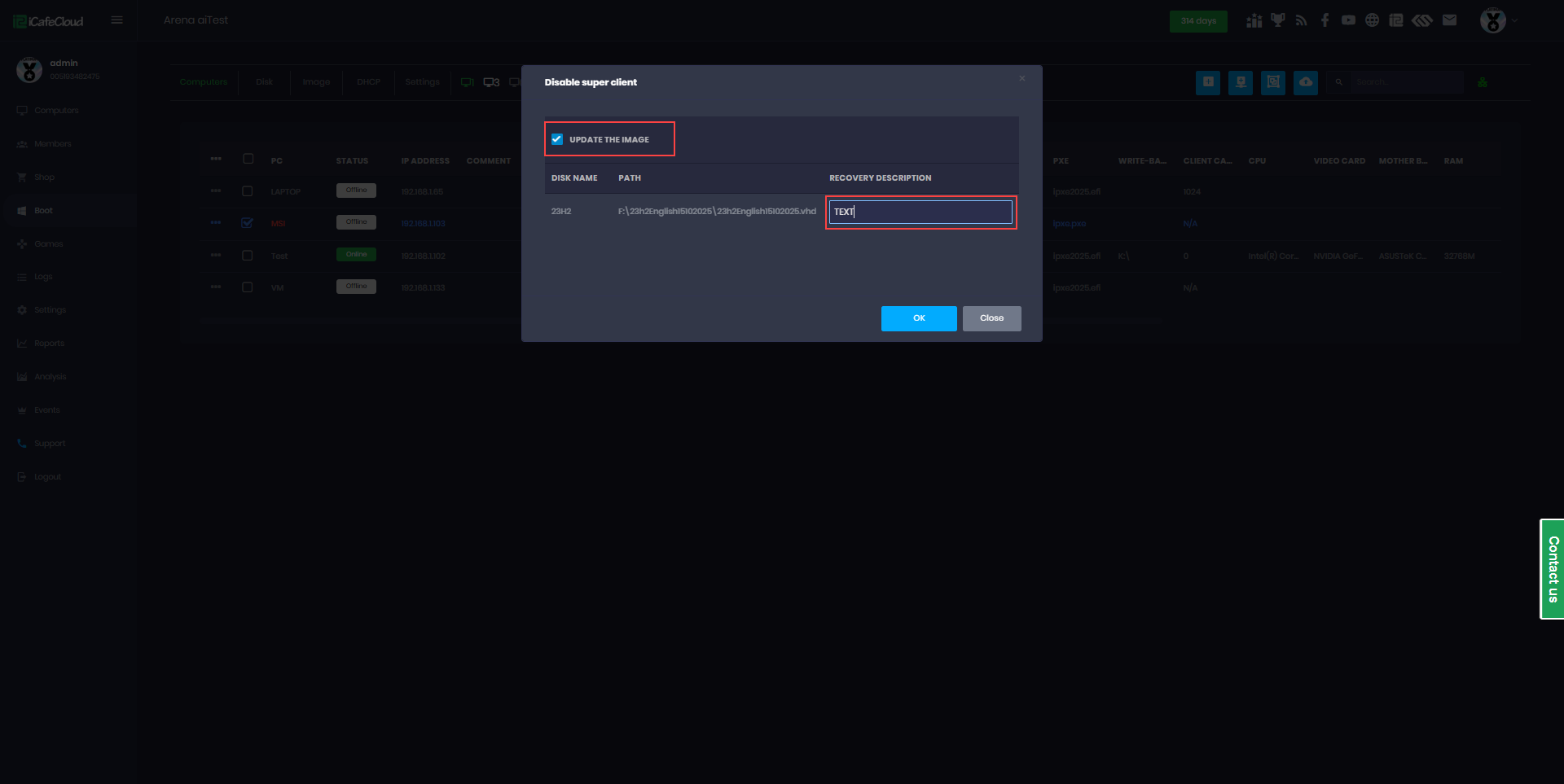
Source: CCBoot Cloud Super client.
Common errors
Section titled “Common errors”| Situation | Action |
|---|---|
| API authorization error | Confirm API Access IP contains 81.26.188.3, check key expiry and confirm the token saved in CRM is current. Save a replacement key in IZI after issuing it. |
Url not match response | Match Cafe ID to the club’s License ID and API URL to https://api.icafecloud.com. |
| API rate limit | Wait for the iCafeCloud limit to clear, then repeat the connection check. |
| Timeout or API connection error | Send IZI support the club name, time and CRM message so they can inspect the iCafeCloud connection. |
| Connection succeeds and a command for one PC fails | Match its zone, full Windows name, CCBoot name and assigned image. |
| Image already has an active update | Wait for the current image update to finish. |
| Editor PC requires its connection restored | Reboot it and wait for it to come online in IZI. The operation continues when the connection returns. |
Related guides
Section titled “Related guides”अक्सर पूछे जाने वाले सवाल
Which address goes into API Access IP?
Enter 81.26.188.3, the fixed outgoing IP of the IZI integration. IZI sends iCafeCloud requests through its dedicated proxy at this address.
Where do I find the Cafe ID?
Open Settings → API settings in iCafeCloud and copy License ID. The identifier is also shown in your iCafeCloud license.
How does IZI match a PC to CCBoot?
Assign the PC to a diskless zone in IZI and match its full Windows computer name to its CCBoot name, such as PC01. IZI uses this name to find the PC.
What does Update boot image do?
It updates the IZI client in the shared image through Super Client: enables editing, installs the client, saves the image and returns the PC to normal mode.
IZI LLC (ООО «ИЗИ»), TIN 7842227686, OGRN 1257800012249, office 1, premises 3-N, lit. A, 15-17 Perekupnoy lane, Saint Petersburg, 191024, Russia, admin@izi.is · Cookie settings